
If you want a simple way to watch IPTV on a phone, tablet, Smart TV, or streaming device, xtream iptv player can be a practical option. The player acts as the interface between your device and the IPTV service you already use. It does not automatically include channels, movies, or sports. You add valid login details or playlist information, then use the app to organize and play the available content.
What Is an Xtream-Based IPTV Player?
An Xtream-based player is a media app that connects with IPTV services using Xtream Codes-style login details. In most cases, your provider gives you a server or portal URL, a username, and a password.
After login, the app can load live television, movies, series, and electronic program guide information when supported. The player itself is only software. Your subscription, channel list, account status, and stream quality come from the IPTV provider.
This distinction matters because downloading a player does not automatically give you television channels. You still need a compatible IPTV service.
Why People Use This Type of Player
Instead of loading individual stream URLs, users can sign in once and browse organized sections from one interface. Depending on the app, useful features may include favorites, search, EPG data, VOD libraries, subtitles, parental controls, profiles, casting, and external player support.
For households in Sweden, device flexibility can also matter. Before installing an app, check that both the player and your IPTV plan support the devices and number of connections you intend to use.
How to Set Up Xtream IPTV Player
1. Choose a Compatible Device
IPTV players are commonly available for Android phones, Android TV devices, tablets, iPhones, iPads, and some Smart TV platforms. Availability varies by app store, television brand, region, and operating-system version.
If your Smart TV does not offer the player you want, a compatible streaming device can provide more app choices.
2. Install the Player
Download the player from your device’s official app store whenever possible. Check the developer name, reviews, recent updates, privacy information, and supported features before installing.
Avoid modified APK files or unknown copies from random websites. A player handles account credentials, so a trustworthy installation source matters.
3. Get Your IPTV Login Details
Your provider should supply the information required by the player. For an Xtream-style login, this normally includes a server address, username, and password.
If you are still choosing a provider, the JA IPTV service offers subscription options for different devices and viewing needs. Confirm compatibility before purchasing so you know which login method and app fit your setup.
4. Add the Account
Open the player and look for Add User, Login With Xtream Codes, Add Playlist, or similar wording. Enter a profile name, then carefully paste the server URL, username, and password.
An extra space, missing character, incorrect protocol, or outdated password can prevent connection. Copying the details directly from your provider is usually safer than typing them manually.
5. Let the Content Load
After login, the app may take a short time to load channel categories, VOD sections, logos, and EPG information.
Open several live channels and a VOD item to confirm playback.
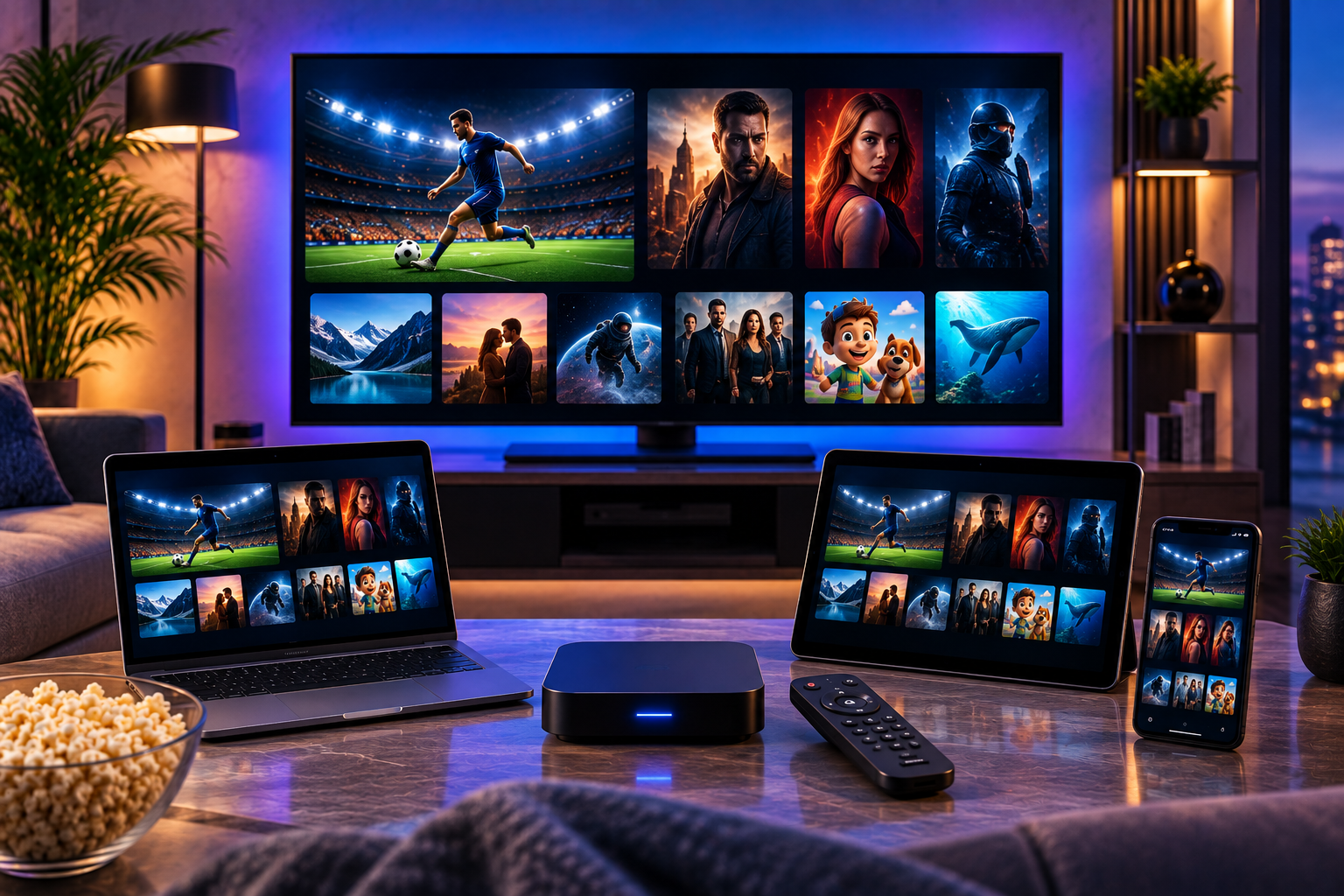
Best Settings for Smooth IPTV Streaming
A good player cannot compensate for an unstable internet connection. For reliable HD, FHD, or 4K viewing, use stable broadband and keep your device close to the router. Ethernet is often preferable for fixed televisions or streaming boxes because it reduces Wi-Fi interference.
If buffering appears, lower the stream quality and test again. Close large downloads, cloud backups, game updates, or other high-bandwidth activity on the network.
Keep the app and operating system updated because older versions may develop compatibility problems.
The JA IPTV subscription can be considered when you want a service that supports common viewing devices and multiple content types. Match the subscription, device, connection count, and app before regular use.
Common Login and Playback Problems
Invalid Username or Password
Recheck every character and remove spaces before or after the login details. If you renewed or changed your account, use the newest credentials supplied by your provider.
Server URL Does Not Connect
Confirm that the portal address is complete and uses the exact format supplied. Do not guess whether it should begin with HTTP or HTTPS.
Channels Load but Do Not Play
Try several channels. If every channel fails, restart the app and test the same account on another supported device. This helps separate a player issue from an account, network, or provider problem.
EPG Is Missing
Program-guide data depends on both the provider and player. Refresh the EPG from the app settings if possible. If channel names and times still do not appear, ask whether EPG data is included.
For setup help, contact JA IPTV support on WhatsApp and provide your device model and player name. Never post your password publicly or share account details in open forums.
Player Versus IPTV Service: Know the Difference
The player determines how you browse and watch. The IPTV service determines what streams your account can access. Choosing only by app design can therefore disappoint if the underlying service is unstable, incompatible, or poorly supported.
When comparing providers, focus on device compatibility, support, stream stability, connection limits, channel organization, VOD availability, and setup instructions. You can also review another brand such as Viking IPTV to see how different providers present device support and subscriptions.
Use IPTV only with content and services you are legally authorized to access. Media-player apps do not necessarily provide their own content, so responsibility for added streams remains with the user and service provider.
Tips for a Better Experience in Sweden
Choose an app interface that works well on your main device. On televisions, remote-friendly menus matter more than advanced phone features.
Test streaming during the evening, when home networks may have more activity. If 4K buffers but HD plays smoothly, the higher bitrate may exceed your connection speed or device capability.
Logging into several devices does not always mean they can all stream at once.
Frequently Asked Questions
Do I Need an M3U Link?
Not always. If your provider gives you a server URL, username, and password, you can usually use the Xtream login option. M3U is an alternative supported by many players.
Does the Player Include Channels?
No. A player normally organizes and plays content supplied through your own IPTV service or playlist.
Can I Use the Same Login on Multiple Devices?
That depends on your subscription. Some plans allow one active stream, while others support multiple simultaneous connections. Check your provider’s terms before streaming on several devices.
Is 4K Always Better?
Only when your device, network, and source stream can handle it consistently. Stable HD or FHD can be better than 4K that repeatedly buffers.
Final Thoughts
An Xtream-based player is straightforward once you understand that the app and IPTV subscription are separate. Choose a compatible device, install a trusted player, enter the correct details, test playback, and adjust network settings when needed. If you want an IPTV package for live TV, movies, series, sports, and multiple device options in Sweden, visit JA IPTV to compare plans and choose the setup that fits your viewing habits.