
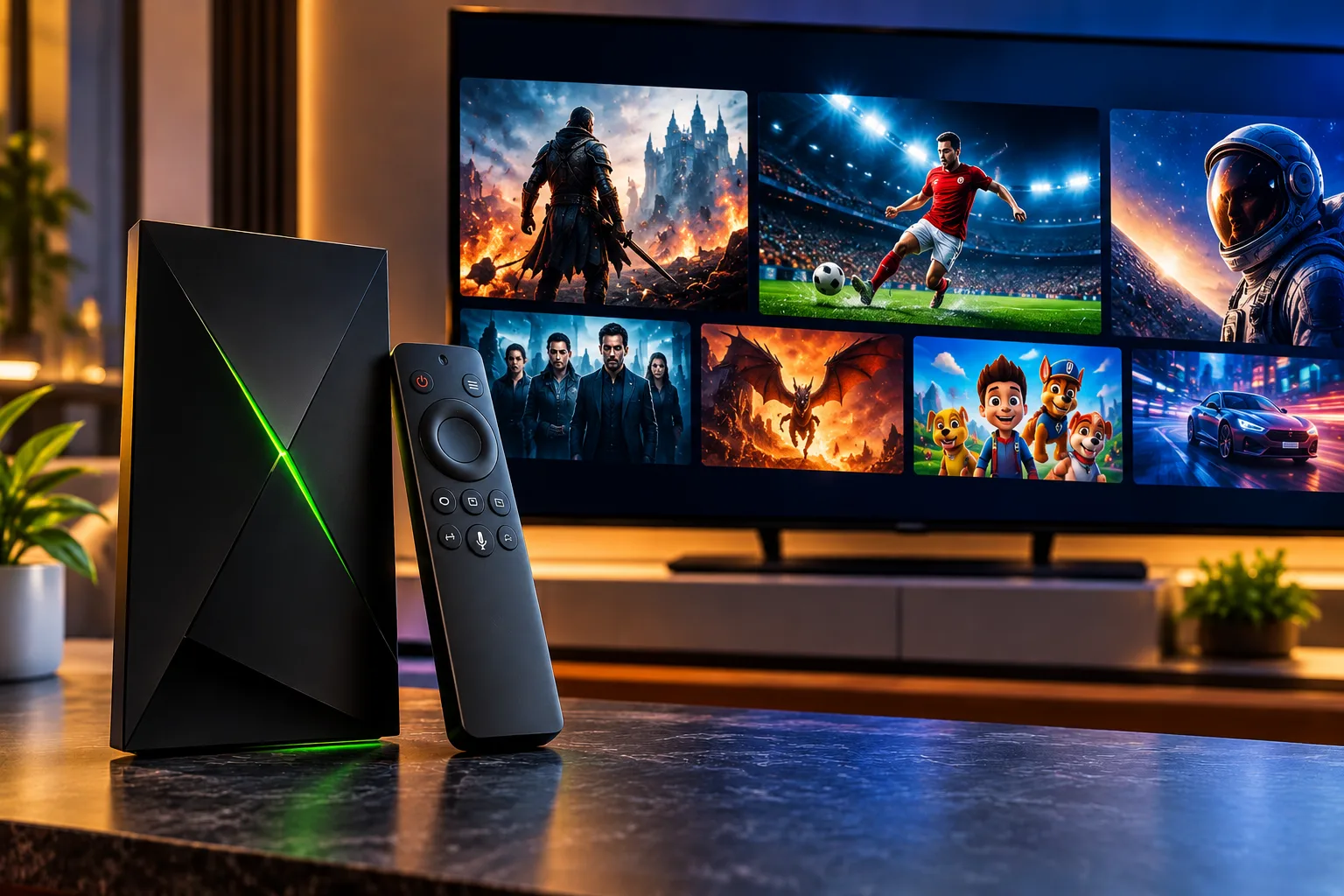
If you are planning an IPTV NVIDIA Shield setup, you have picked a device that suits live streaming well. It is fast, it runs Android TV and it has a wired network port that keeps playback steady. This guide explains how to set everything up, which apps work best and how to fix the problems that Swedish viewers meet most often.
Why Choose the Shield for IPTV?
The Shield is popular with people who want smooth playback without constant tinkering. Several features help:
- Wired Gigabit Ethernet: A cable connection is steadier than Wi-Fi, especially during live sport.
- Strong processor: Menus open quickly and large channel lists scroll without lag.
- AI upscaling: The device can sharpen lower-resolution streams on a 4K television.
- Wide format support: It handles HD, FHD and 4K streams, along with common audio formats.
- Android TV apps: Most popular IPTV players are available or easy to install.
Both the standard model and the Pro work for IPTV. The Pro adds extra memory, storage and USB ports, which matter more for gaming, recordings or a home media server than for basic viewing. Stock levels and software support can change, so check current details before buying.
What You Need Before You Start
A little preparation makes setup quick. Have these ready:
- Your Shield connected to the television and powered on
- A stable internet connection, ideally 10 Mbps for HD and 25 Mbps for 4K
- Login details from your IPTV provider, either Xtream Codes details or an M3U link
- A phone or laptop for copying long links
Use an ethernet cable if your router is close. If you must use Wi-Fi, choose the 5 GHz band and keep the Shield within a clear line of the router.
IPTV NVIDIA Shield Setup: Step by Step
The process takes about ten minutes. Follow the order below.
Step 1: Connect to the Network
Plug an ethernet cable into the Shield and the router. Open Settings, then Network, and confirm the connection is active.
Step 2: Install an IPTV Player
Open the Google Play Store on the Shield, search for your chosen app and install it. If the app is missing in your region, you can install it manually with a downloader app, but use only the developer’s official source.
Step 3: Add Your Login Details
Open the app and choose either Xtream Codes or M3U playlist. Enter the server address, username and password, or paste your link. Check for stray spaces, because they cause many loading errors.
Step 4: Set Up the Guide and Favourites
Let the app load the channels, then enable the electronic programme guide (EPG). Select your favourite groups so you do not scroll through thousands of entries each evening.
If you want a provider that supplies clear login details for these steps, the JA IPTV service is built for simple setup on Android TV devices and other popular platforms.
Best IPTV Apps for the Shield
Several players work well. The right choice depends on how you like to watch.
TiviMate
Many Shield owners rate TiviMate as the best all-round option. It offers a smooth channel guide, reliable favourites and optional premium features such as recording and multiple playlists.
IPTV Smarters Pro
This app has a simpler layout and an easy login process. It suits beginners who want a straightforward experience without many settings.
XCIPTV
This player includes built-in ExoPlayer and VLC engines, EPG support and catch-up where your provider allows it. It is a flexible choice if you like to adjust playback options.
Kodi
Kodi suits advanced users. With the PVR IPTV Simple Client add-on, it can load an M3U playlist and guide, though setup takes longer than in a dedicated IPTV app.
Whichever you choose, remember that the app only plays content. Your subscription supplies the channels.
Wi-Fi Tips If You Cannot Use Ethernet
Not every home has a cable near the television. In that case, place the router in the same room if possible, use the 5 GHz band and avoid walls and appliances between the two. A powerline adapter or mesh system can also help. Test your speed on the Shield device itself, because results on a phone can look better than the real connection.
Shield Settings That Improve Streaming
A few changes make a noticeable difference.
Match content frame rate: Swedish sports and many European channels use 50 Hz. Turning on frame rate matching in the display settings reduces judder.
Use AI upscaling carefully: It can improve lower-resolution streams, but test it on your own television, because some viewers prefer the original picture.
Add external storage: If your app supports recording, use a USB drive on a model with ports. Storage is not unlimited, so delete old recordings.
Keep software updated: Updates to the system and your IPTV app fix bugs and improve stability.
Common Problems and Fixes
Most problems have simple causes.
Buffering or Freezing
Restart your router and Shield, then run a speed test. Close background apps and clear the cache of your IPTV player. If you use Wi-Fi, move to ethernet.
Playlist or Login Will Not Load
Re-enter your details slowly and confirm the subscription is active. Providers sometimes update server addresses, so request fresh details if the old ones stop working.
Empty or Wrong Programme Guide
Check the EPG link and set the time zone to Europe/Stockholm. A wrong time zone is the usual reason programmes appear early or late.
App Crashes
Clear the cache or reinstall the app. If the problem returns, try a different player.
No Sound or Black Screen
Switch the player engine in your app settings and check the Shield audio output. Then restart the app afterwards.
If you want to see how another Nordic provider explains its own Android TV setup, Nordic IPTV King offers one example for comparison.
Choosing a Subscription for Your Shield
The Shield is powerful, but it cannot fix a weak service. Look for stable servers, HD, FHD and 4K options, Nordic channels and sports, clear device limits and quick support. A dependable provider turns a good device into a great viewing experience, and a reliable IPTV with JA IPTV plan is designed around stable performance and easy support.
Frequently Asked Questions
Is the Shield good for IPTV?
Yes. Its wired network port, fast processor and Android TV apps make it a strong choice for live streaming.
Do I need ethernet?
It is not required, but it is more stable than Wi-Fi, especially for 4K and live sport.
Which app should I start with?
Beginners usually find IPTV Smarters Pro easiest, while TiviMate suits viewers who want a polished guide and more features.
Can I record live TV?
Recording depends on your app and your provider. Some players support scheduled recording to external storage, but not every playlist allows it, so check your app settings first.
Final Thoughts
A good setup comes down to a wired connection, a reliable app and correct login details. Take your time with the steps above and tune the display settings for your television. If you want stable streaming, flexible packages and friendly support, visit the JA IPTV official website and choose a plan that suits your home.