
If you have heard about Duplex Play and wonder whether it is the right player for your TV, you are not alone. Many viewers in Sweden want a clean, flexible app that works with their own IPTV subscription. This guide explains what the app is, where it runs, how activation works, and what to do when something goes wrong.
What Is This IPTV Player?
It is a media player, not a channel provider. The app contains no channels, films or series of its own. Instead, it plays content from a playlist that you add yourself, usually an M3U link supplied by your IPTV provider.
That difference matters. You need two things for a working setup: the player on your device and an active subscription that supplies the playlist. Without the second part, the app opens to an empty screen.
Viewers like this type of player for a few reasons:
- A clear channel list with categories and favourites
- Electronic programme guide (EPG) support
- Support for live TV and on-demand playlists
- A simple layout that suits a remote control
Where Is It Available?
Availability depends on your device, your country and the app store you use. The app appears on several platforms, and Titan OS lists it across dozens of European and international markets. Store listings can change, so always confirm on your own device before planning your setup.
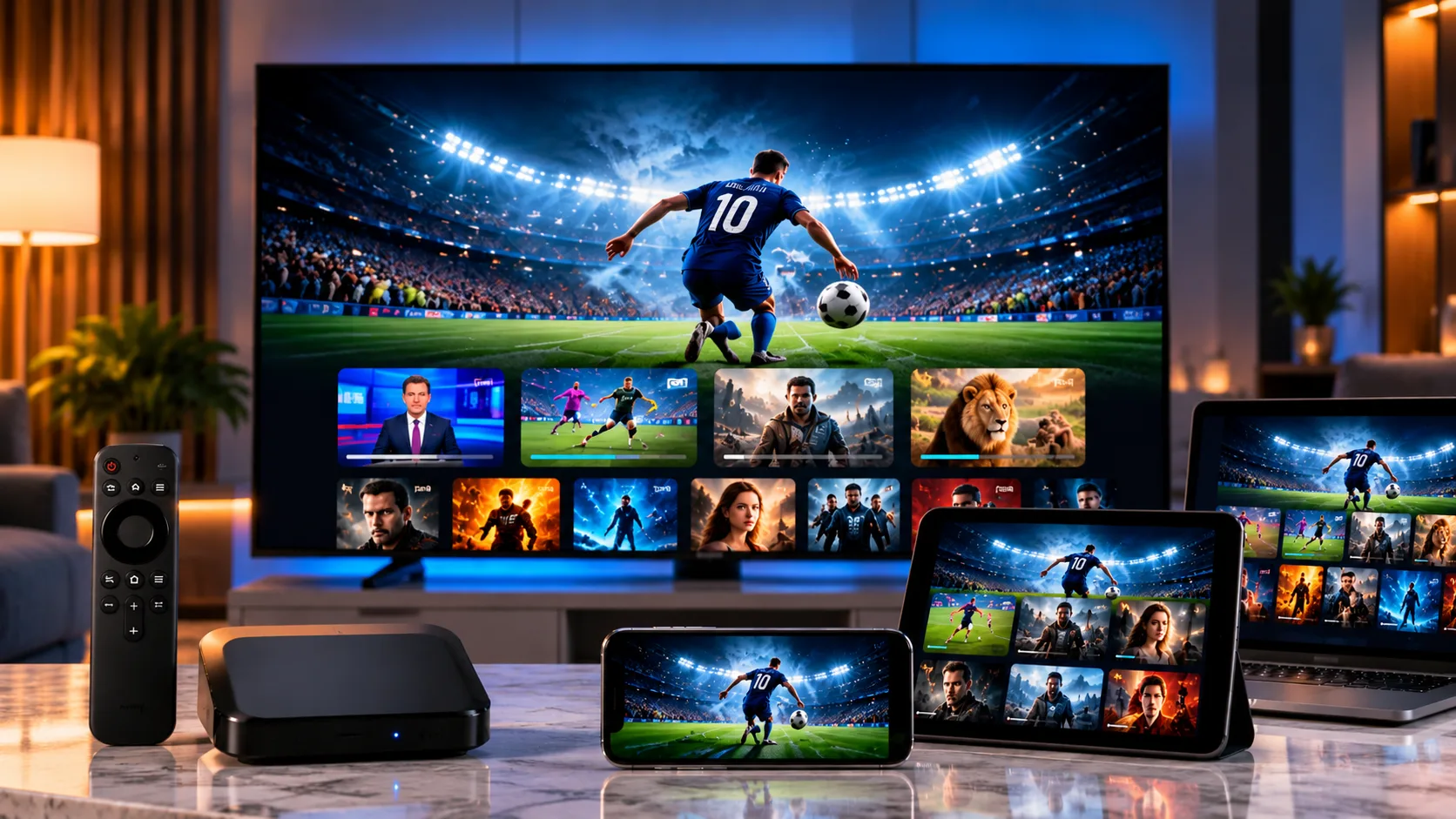
Commonly supported devices include:
- Smart TVs: Samsung, LG, and Android TV or Google TV models, plus Titan OS televisions
- Streaming boxes: Nvidia Shield, Xiaomi Mi Box and Mi Stick, and other Android boxes
- Computers: Windows 10 and Windows 11
Older televisions may not support the app at all. If you cannot find it in your store, check your TV software version first, since an outdated system is the usual reason.
Before You Start: A Quick Checklist
Preparation prevents most setup headaches. Gather these items before opening the app:
- A TV or device that supports the player
- A stable internet connection of at least 10 Mbps for HD and 25 Mbps for 4K
- Your IPTV playlist link from your provider
- A phone or computer for the activation and playlist steps
A wired network cable is more dependable than Wi-Fi for a main television. If your signal is weak, fix that first, because buffering is often blamed on the app when the connection is the real cause.
How to Set Up Duplex Play Step by Step
The process uses a device-linking system. Instead of typing long links with a TV remote, you manage everything from a web page on your phone or laptop. This makes life much easier.
Step 1: Install the App
Open the app store on your device, search for the player and install it. On Windows, use only an official source.
Step 2: Note Your Device Codes
When the app opens, it shows a Device ID and a Device Key. Write them down exactly, or take a photo of the screen. These two codes connect your TV to your online account.
Step 3: Open the Management Page
On your phone or computer, visit the official management page that the app points you to. Enter the Device ID and Device Key, then choose the option to manage your device.
Step 4: Add Your Playlist
Name your playlist and paste the M3U link from your provider. Check for extra spaces at the start or end of the link, because a stray character is a common reason playlists fail to load.
Step 5: Restart and Check
Save your changes, restart the device and reopen the app. Your channel list should load within a minute or two. If you want a service that provides clear playlist details and simple instructions, the JA IPTV service is built around a straightforward setup for Swedish viewers.
Understanding Activation
Many players of this kind offer a trial period so you can test them first. After that, a one-time activation may be needed to keep using the app on a device. Terms, prices and trial lengths can change, so read the current details on the official activation page before paying anything.
Keep these points in mind:
- Activation usually applies to the player, not to your IPTV subscription.
- Each device normally needs its own activation.
- Never pay through unofficial sellers or unfamiliar links.
- Keep your Device ID and Device Key safe, since they identify your device.
This separation confuses some beginners. The app activation unlocks the player. Your subscription unlocks the actual content.
Common Problems and Quick Fixes
Even a smooth setup can hit small problems. Start with these fixes.
Playlist Will Not Load
Re-enter the link carefully and confirm that your subscription is active. Some apps show a “not found” message when the link has been typed incorrectly or the provider has updated its address.
Black Screen or Constant Buffering
Restart your router and device, then test another app on the same network. If other apps stream normally, clear the cache or reinstall the player. For 4K content, make sure your connection can handle the higher bandwidth.
Programme Guide Is Empty or Wrong
Check the EPG link in your provider details and make sure your time zone is correct. Swedish viewers should use Europe/Stockholm so programme times line up properly.
Device Codes Not Accepted
Confirm that you typed the Device ID and Device Key exactly as shown, including upper and lower case. Codes can refresh when the app restarts, so enter the newest ones on screen.
If you want to see how another Nordic provider presents its own setup material, Nordic IPTV King offers one example for comparison.
Tips for Smoother Streaming
A few simple habits keep playback stable:
- Update the app and your TV software regularly.
- Use ethernet instead of Wi-Fi where possible.
- Keep your playlist link private.
- Avoid running heavy downloads during live sport.
- Restart the device occasionally to clear temporary files.
Choosing the Right Subscription for Your Player
The player is only half of the experience, so the subscription behind it deserves attention. Look for a provider that offers stable servers, HD, FHD and 4K options, clear setup details and quick support when a link needs replacing. Swedish viewers should also check that Nordic channels and sports are included, and that the provider explains device limits plainly. A little research before you subscribe saves you hours of frustration later.
Frequently Asked Questions
Does the app include free channels?
No. It plays only the content from the playlist you add, so you need a separate subscription.
Can I use it on more than one device?
Usually yes, but each device is set up and activated separately. Your provider also decides how many simultaneous streams your subscription allows.
Is the player safe to use?
A player is only software that displays your playlist. Download it from official stores, protect your device codes and choose a trustworthy provider.
Final Thoughts
A good player and a good subscription work best together. Take your time with the setup, keep your codes safe and check the official activation details before paying. If you want dependable streaming, flexible packages and helpful support, visit the JA IPTV official website and find a plan that fits your home.