
When an IPTV playback error appears during a match, movie, or series, it does not always mean your subscription is broken. The cause can be the app, router, WiFi, VPN, codec, stream quality, expired account, server maintenance, or one specific channel feed. For viewers in Sweden, the smartest approach is to test each layer in order, instead of reinstalling everything and losing useful settings.
IPTV playback error: first identify the pattern
Before changing anything, notice when the message appears. Does it reconnect after three seconds? Does it happen on live TV only, VOD only, sports only, or every stream? Does the same channel work on your phone but fail on the TV?
Write down device, app, channel, time of day, network type, VPN status, and the exact error message. These notes make troubleshooting faster and help support understand the issue without guessing.
What the competitors show
The main Troypoint Insider thread is a real IPTV Smarters Pro case. The user reported “playback error, reconnecting in 3s,” while replies suggested VPN testing, ISP throttling, account expiry, provider maintenance, user agent settings, and provider support. The final fix was simpler: rebooting the router solved the problem.
The second Troypoint URL points to the same discussion but opens a thin post-specific page with limited visible troubleshooting detail. That creates a content gap. A better guide should explain router restarts, app cache, VPN checks, device decoding, stream quality, account status, and support questions in one clean order for Swedish users.
Step 1: Restart app, device, and router
Start small. Close the IPTV app fully, reopen it, and test the same channel. If playback returns, the issue may have been temporary memory, buffering, or a player session problem.
Next, restart the streaming device. Fire TV sticks, Android boxes, Apple TV, smart TVs, and Windows PCs can all develop playback issues after long sessions.
Then reboot the router. Unplug it or use its restart button, wait for the connection to return fully, and test again. With a JA IPTV service you can check live TV, sports, movies, series, HD, FHD, 4K, and EPG on the actual device you use at home.
Step 2: Check internet and WiFi
Open another streaming app on the same device. If that also fails, the problem is broader than IPTV. Test speed near the TV, not beside the router.
Use Ethernet for the main screen when possible. If you use WiFi, check distance, walls, repeaters, interference, and evening congestion. A phone beside the router may look perfect while a TV box behind the screen struggles.
Try a mobile hotspot briefly. If the same stream works on a hotspot but fails on home WiFi, focus on the router, DNS, VPN, or ISP routing.
Step 3: lower quality and test codecs
Do not start with 4K. Test HD first, then FHD, then 4K. If HD works but higher quality fails, your device, WiFi, codec support, or stream bitrate may be the limit.
Some apps let you change the player engine, decoder, or external player. Try hardware decoding, then software decoding. If the stream opens in VLC but not the built-in player, the app is probably the weak point.
Step 4: Clear app cache carefully
Apps keep old playlist data, guide files, and failed playback sessions. Clear cache, not full data, unless you have saved your login details. On Android TV and Fire TV, this is usually done from app settings.
After clearing cache, reopen the app, refresh the playlist, and test one channel. Do not change every setting at once.
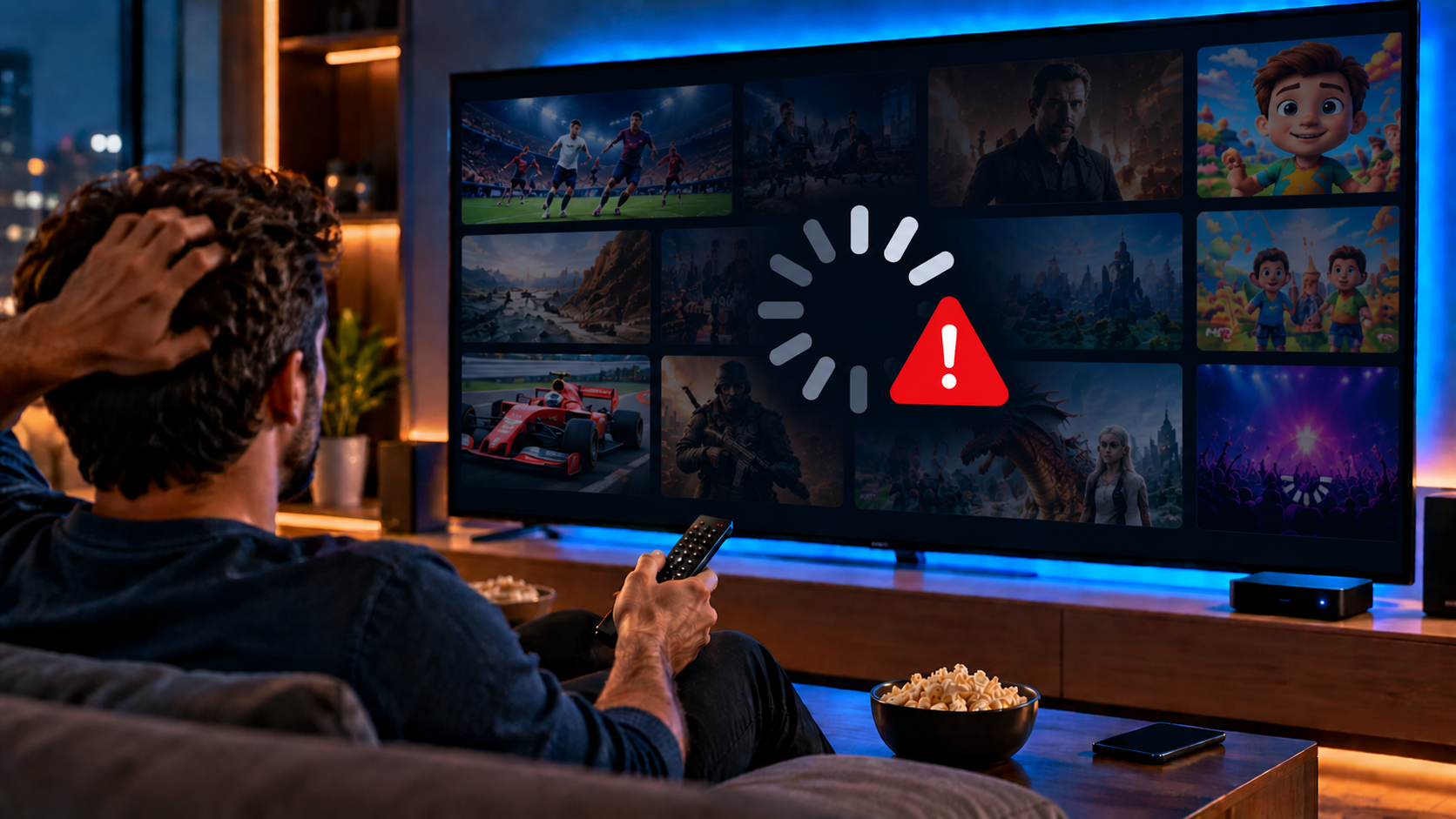
With a JA IPTV subscription, you should test app cache, channel switching, subtitles, audio sync, and restart behavior before choosing longer access.
Step 5: Test VPN and DNS
A VPN can help when routing is poor, or traffic is shaped. It can also create slower speeds, blocked login, or unstable playback. Turn VPN off and test. Then try one nearby server if needed.
DNS can also affect connection to the IPTV server. If the app cannot resolve the host reliably, streams may fail even when your internet works. Restarting the router often refreshes this path.
Compare how Monster IPTV presents device support and packages, but judge your own setup through real evening tests at home.
Step 6: Confirm account and server status
If every channel fails, the issue may be account status, server maintenance, expired access, or a reached stream limit. Ask support whether your line is active and whether the server is under maintenance.
If only one channel fails, report that channel name and time. The feed may be down while the rest of the service is fine. If VOD fails but live TV works, the VOD library may use a separate route or server.
Step 7: Check app settings
In IPTV Smarters, user agent and player selection can affect playback. In TiviMate, decoder, buffer size, external player, and playlist refresh can matter. In VLC, direct testing can prove whether a link opens outside the main app.
Change one setting, test, then write the result. This avoids confusion and helps you reverse bad changes. It also makes support conversations clearer and faster.
Need help with M3U, Xtream, EPG, VPN testing, app settings, or playback messages? You can contact JA IPTV on WhatsApp. Share device model, app name, and error text, but never passwords or card details.
Quick fixes by symptom
Reconnects every few seconds
Reboot the router, test without VPN, clear cache, check account status, and ask whether the provider is doing maintenance.
Only VOD fails
Try lower quality, another player, a different audio track, and the same title on another device.
Only live TV fails
Refresh the playlist, check live TV access, test another app, and ask whether live servers are affected.
One channel fails
Test nearby channels. If they work, report the exact channel instead of rebuilding the whole setup.
Common mistakes
The first mistake is deleting the app before saving login details. The second is blaming the provider before testing the router, VPN, cache, quality, and another player.
The third mistake is changing everything at once. If you change router settings, VPN server, app, quality, and device together, you will never know what fixed the issue. Change one thing, test, and keep notes. Keep older notes because repeated timing patterns often reveal whether the problem appears during peak hours or after app updates.
FAQ
Is playback failure always a server problem?
No. It can be server-related, but it can also be device, app, codec, network, VPN, or account-related.
Should I use a VPN?
Only if testing proves it helps. A VPN can solve routing issues or create new streaming problems.
Does lower quality help?
Yes. Stable HD is better than unstable 4K, especially on weak WiFi or older devices.
What should I send support?
Send device, app, channel, time, network type, VPN status, and what you already tested.
Playback problems are easiest to solve when you follow a calm order: restart the app and router, test the internet, lower the quality, clear the cache, compare players, check the VPN, and confirm account status. If you want flexible IPTV packages, simple setup, and support for Swedish devices, you can get started with JA IPTV and build a smoother streaming setup at home.