
If you want an IPTV MAG box working smoothly in Sweden, the setup is different from installing a normal app on Android TV or Apple TV. Many MAG devices use a portal system, where the provider connects your box through a portal URL and the device MAC address. Once configured correctly, the box can open live TV, movies, series, EPG, and catch up with a simple, remote-friendly interface.
IPTV MAG box: what makes it different?
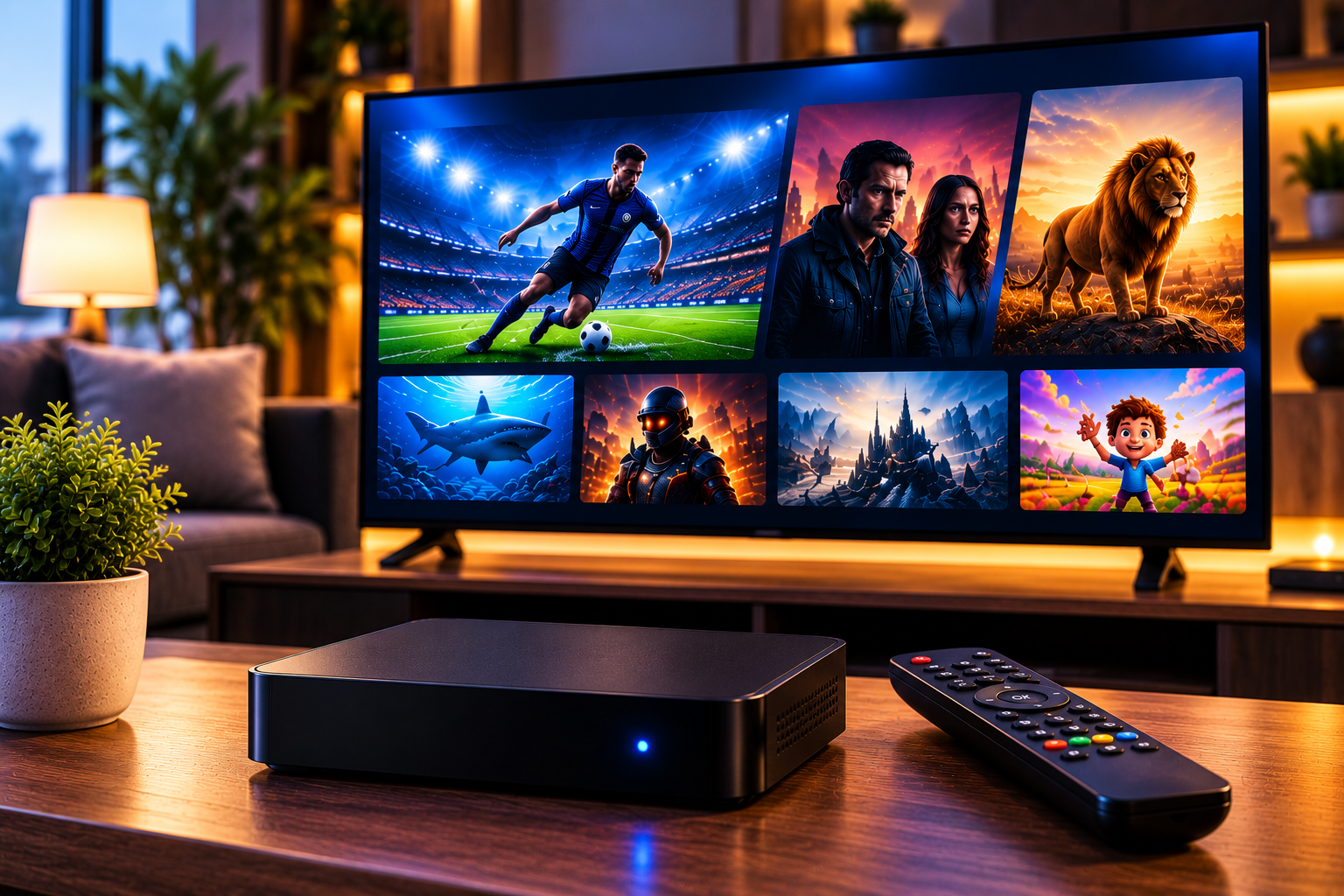
A MAG box is a set-top box designed for IPTV and OTT services. Some models run Linux, while newer devices such as MAG555 use Google TV. Traditional Linux MAG boxes often feel more like a dedicated TV receiver than an app-based streaming stick.
That difference matters. Instead of typing an M3U link into a player, you usually add a portal address inside the system settings. The provider then authorizes the box by its MAC address. If either the portal URL or MAC address is wrong, the portal may fail to load.
What the competitor pages show
Satvision’s Swedish category page focuses on buying Infomir MAG products and accessories. It presents MAG receivers as IPTV boxes with strong picture and sound quality, shows models such as MAG555 and MAG544w3, and lists accessories like remote controls, WiFi adapters, and power supplies. The page is useful for product discovery, but it does not explain portal setup, troubleshooting, or Swedish home network testing.
Infomir’s official page gives broader product context. It explains that MAG devices include Linux and Android TV or Google TV models, with 4K and HEVC support on several boxes. It also compares hardware such as storage, RAM, WiFi options, and operating systems. The gap is a practical customer guide for configuration.
Step 1: Identify your MAG model
Start by checking the model number on the box, settings screen, or label. MAG254, MAG256, MAG322, MAG324, MAG420, MAG540, MAG544, and MAG555 do not all behave the same.
Older Linux boxes usually use portal configuration. Newer Google TV models may also support app based setup. Knowing the model helps you choose between portal, M3U, Xtream, or Google Play apps.
With a JA IPTV service, you can test live channels, sports, movies, series, HD, FHD, 4K, and EPG on the MAG device you actually use at home.
Step 2: Connect the network properly
Use Ethernet if possible. A MAG box is often placed near the TV and router, so a cable can remove many WiFi issues. Ethernet helps with live sports, long movies, and 4K streams.
If you must use WiFi, confirm whether your model has built-in WiFi or needs a USB adapter. Test signal strength near the TV, not beside the router. Weak WiFi can make the portal load slowly or freeze after channel changes.
Restart the router before blaming the box. A fresh network session can solve portal loading, DNS, and buffering problems.
Step 3: Find the MAC address
The provider needs your device MAC address. On many MAG boxes, it appears in system settings, network information, or on the bottom label. It starts with 00:1A:79, but confirm the exact value on your own box.
Do not send a random router MAC address or WiFi adapter address unless support asks for it. One wrong digit can stop activation. Take a clear photo, but do not post it.
Step 4: Enter the portal URL
Open settings, then servers or portals, depending on the model. Enter the portal URL as provided. Keep http or https, port numbers, slashes, and spelling unchanged.
After saving, restart the portal or reboot the box. The first load may take longer because the device downloads menus, channel groups, logos, and guide data.
With a JA IPTV subscription, you should test portal loading, channel groups, EPG, subtitles, VOD, audio sync, and restart behavior before choosing longer access.
Step 5: Understand portal versus M3U
A portal setup links the box to a provider-controlled interface. M3U is usually a playlist link used in separate player apps. Xtream Codes uses a server, username, and password.
Do not mix them. If your provider gives a portal, use the portal field. If it gives M3U, you may need a compatible app or another device. If it gives Xtream, a Linux MAG portal screen may not accept it.
Compare how Monster IPTV presents device support and packages, but judge your own setup by how reliably the portal opens on your box.
Step 6: Tune picture and playback
Start with HD before FHD or 4K. If HD is stable but 4K freezes, the issue may be bandwidth, server load, codec support, or model performance.
HEVC support helps with efficient high-quality video, but both the stream and device must handle it correctly. If one channel fails, test several others before changing every setting.
On older TVs, check HDMI input, cable quality, and resolution settings. An HDMI cable swap can solve black screen or flicker issues.
Step 7: update carefully
Firmware updates can fix bugs, but they can also change menus. Update only through trusted system options or manufacturer-approved files. Avoid random firmware downloads from forums.
Before resetting, save the portal URL, MAC address, network details, and any support messages. Factory reset should be a last step, not the first fix.
Troubleshooting checklist
Portal will not load
Check internet, portal spelling, DNS, active subscription, and whether your MAC address is registered correctly.
Channels appear but do not open
Test another channel, restart the box, check account status, and ask whether the provider has server maintenance.
EPG is missing
Refresh the portal, restart the box, and ask whether guide data is included for your package.
WiFi keeps buffering
Use Ethernet, move the router closer, remove weak repeaters, or test another network.
Need help with MAG portal setup, MAC address activation, EPG, buffering, or Swedish device support? You can contact JA IPTV on WhatsApp. Share your model number and issue, but never passwords or card details.
Common mistakes
The first mistake is entering the portal URL from memory. Always copy it exactly. The second is sending the wrong MAC address. The third is resetting the box before checking network and provider activation.
Another mistake is expecting every MAG model to support every app. Linux boxes and Google TV boxes have different strengths. Choose the setup that matches your hardware.
FAQ
Is a MAG box still useful?
Yes, especially for users who prefer a dedicated TV interface and remote-based portal setup.
Do I need M3U on MAG?
Not always. Many MAG setups use a portal URL and MAC activation instead.
Should I use WiFi or Ethernet?
Ethernet is better for the main TV. Use WiFi only when the signal is strong and stable.
Can I use VPN on MAG?
It depends on the model and network setup. Router VPN may be needed on many older boxes.
A MAG setup works best when portal URL, MAC address, network, firmware, and provider activation all match. Check the model, use Ethernet when possible, copy details carefully, and test HD before 4K. If you want flexible IPTV packages, simple portal setup, and support for Swedish devices, you can get started with JA IPTV and build a smoother home streaming experience.