
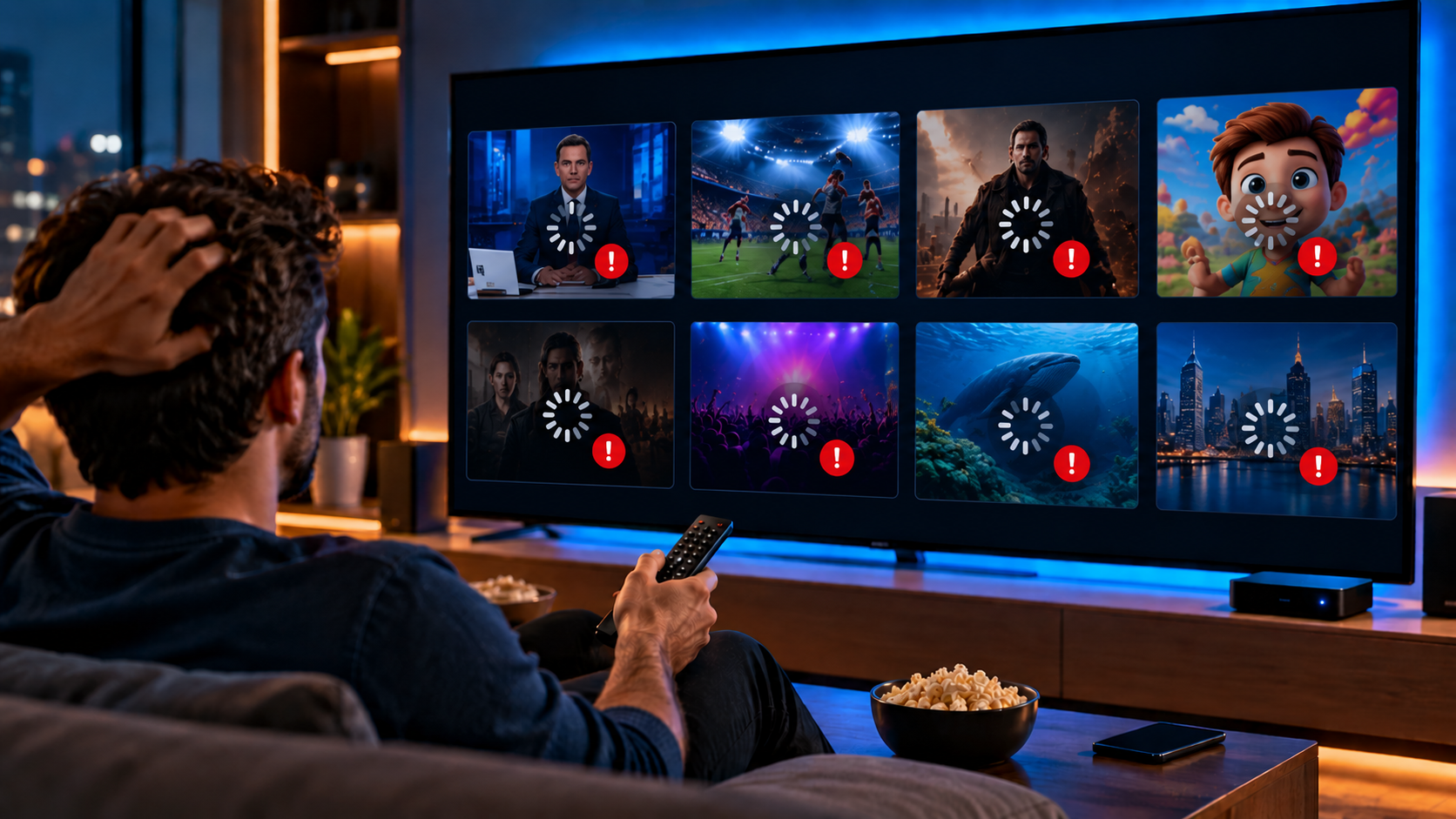
When IPTV channels not loading problems appear, the screen may show a spinner, black video, empty categories, or “no channels” even though everything worked yesterday. For viewers in Sweden, the fastest solution is to separate app display issues from playlist, account, server, network, VPN, and device problems. Work through the steps in order.
IPTV channels not loading: first check what changed
Start with the obvious question: what changed since the channels last worked? Did you move the Fire TV stick, update TiviMate, renew the subscription, turn on a VPN, change WiFi, add a new playlist, or hide a group by mistake?
Write down the device, app, login method, and error message for support.
What the competitors show
TiviMate Gold uses a checklist style guide. It recommends rebooting the IPTV device and router, checking internet speed, disconnecting VPN, clearing app cache, updating the player, and then contacting the provider if nothing changes. The guide is useful because it starts with simple fixes before contacting support.
The Reddit TiviMate thread shows a different type of issue. A user saw no channels even though one channel was still playing. The solution was not the provider or internet connection. All groups had somehow been hidden, and showing groups again restored the list. Replies also mentioned force stop, cache, playlist update, reinstalling the playlist, backup restore, and testing another player.
Step 1: Confirm the account and playlist
If the subscription expired, was reset, or reached a connection limit, the app may show empty lists or failed playback. Ask whether the account is active, whether the server changed, and whether live TV, movies, series, and EPG are enabled.
For M3U, test the link in VLC on Windows or Mac. For Xtream Codes, confirm the server URL, username, and password. Do not paste a customer dashboard URL into the player unless the provider says it is correct.
With a JA IPTV service, you can test live TV, sports, movies, series, HD, FHD, 4K, and EPG on the devices actually used in Swedish homes.
Step 2: Check hidden groups and filters
Empty categories do not always mean empty playlists. In TiviMate and similar apps, groups can be hidden, favorites can be empty, and filters can show only blocked or unavailable items.
Open playlist settings, manage groups, and choose show all groups. Then leave favorites and open the full live TV category. If channels return, create a backup immediately so you can restore the layout later.
This helps on family devices where users may change settings by mistake.
Step 3: update and refresh correctly
Use the app option to update the playlist, not only the EPG. Playlist refresh brings channel groups and stream links. EPG refresh only updates guide data.
If an update reports success but nothing appears, remove the playlist, force stop the app, clear cache, restart the device, and add the source again. Save credentials first. Clearing data can erase login details.
With a JA IPTV subscription, you should test playlist refresh, categories, VOD, guide data, subtitles, and restart behavior before choosing longer access.
Step 4: reboot the right way
A fast restart from the remote is not always enough. Unplug the IPTV device, then unplug the router. Wait a full minute, restart the router, wait until the internet is stable, then start the IPTV device.
This clears temporary memory problems and network sessions. It also helps when an app has been running for days, especially on Fire TV, Android boxes, and older smart TVs.
Step 5: Test internet and WiFi
Open another streaming app on the same device. If that also fails, the issue is wider than IPTV. Run a speed test near the TV, not beside the router.
Use Ethernet for the main screen when possible. If WiFi is required, check signal strength, distance, thick walls, repeaters, and crowded evening traffic. A playlist can load on a phone but fail on a weak TV box connection.
Compare how Monster IPTV presents device support and packages, but judge your setup by your own router, room, screen, and peak hour stability.
Step 6: VPN, DNS, and location routing
A VPN can help with privacy or routing, but it can also stop channels from opening. Turn VPN off and test. Then turn it on only if it clearly improves playback.
Try another VPN server only after testing without one. DNS can also matter. If the app cannot resolve the server domain, playlists may appear empty, or streams may fail.
Step 7: Test another player
A valid playlist can fail in one app and work in another. Try TiviMate, IPTV Smarters, VLC, XCIPTV, Kodi, or another trusted player. Use official store versions when possible.
If another app works, the issue may be cache, decoder, playlist parsing, category visibility, or app compatibility. If no app works, look closer at account, provider server, network, or credentials.
Step 8: device storage and updates
Low storage can stop channel lists from syncing. Delete unused apps, clear cache, and restart. Check for player updates and device firmware updates.
Avoid cracked or modified IPTV apps. They may break playlist updates, hide settings, or expose credentials. A stable official player is safer for phones, TVs, and streaming boxes.
Need help with M3U, Xtream, TiviMate, IPTV Smarters, or missing channel lists? You can contact JA IPTV on WhatsApp. Share device model, app name, and error text, but never passwords or card details.
Quick fixes by symptom
No channels but one stream still plays
Check hidden groups, favorites, history, and playlist categories. The current stream may continue even while the visible list is empty.
Black screen on every channel
Test internet, VPN, server status, another app, and subscription activity. Try HD before FHD or 4K.
Some channels disappeared
The provider may have renamed groups, removed temporary event channels, or updated the playlist. Refresh and show all groups.
VOD works but live TV fails
Live TV access may be disabled, server routing may differ, or the app may need a playlist refresh.
Common mistakes
The first mistake is blaming the provider before checking hidden groups. The second is refreshing EPG when the playlist itself needs updating. The third is clearing data without saving login details.
The fourth mistake is changing router, VPN, app, and playlist at the same time. Change one thing, test, and write down the result.
FAQ
Why were my channels there yesterday?
The account, server, playlist, app cache, group visibility, or network route may have changed.
Should I reinstall the app?
Only after saving your login details. Try force stopping, cache clear, playlist update, and showing all groups first.
Can a VPN cause empty channels?
Yes. Some VPN routes or IP addresses can block playlist loading or stream playback.
What should I tell support?
Send device model, app name, login method, whether VOD works, whether groups are visible, and what you already tested.
Missing channels are frustrating, but the fix is usually practical: confirm the account, show all groups, update the playlist, reboot properly, test the internet, check the VPN, compare with another app, and protect credentials. If you want flexible IPTV packages, simple setup, and support for Swedish devices, you can get started with JA IPTV and build a smoother home streaming setup.