
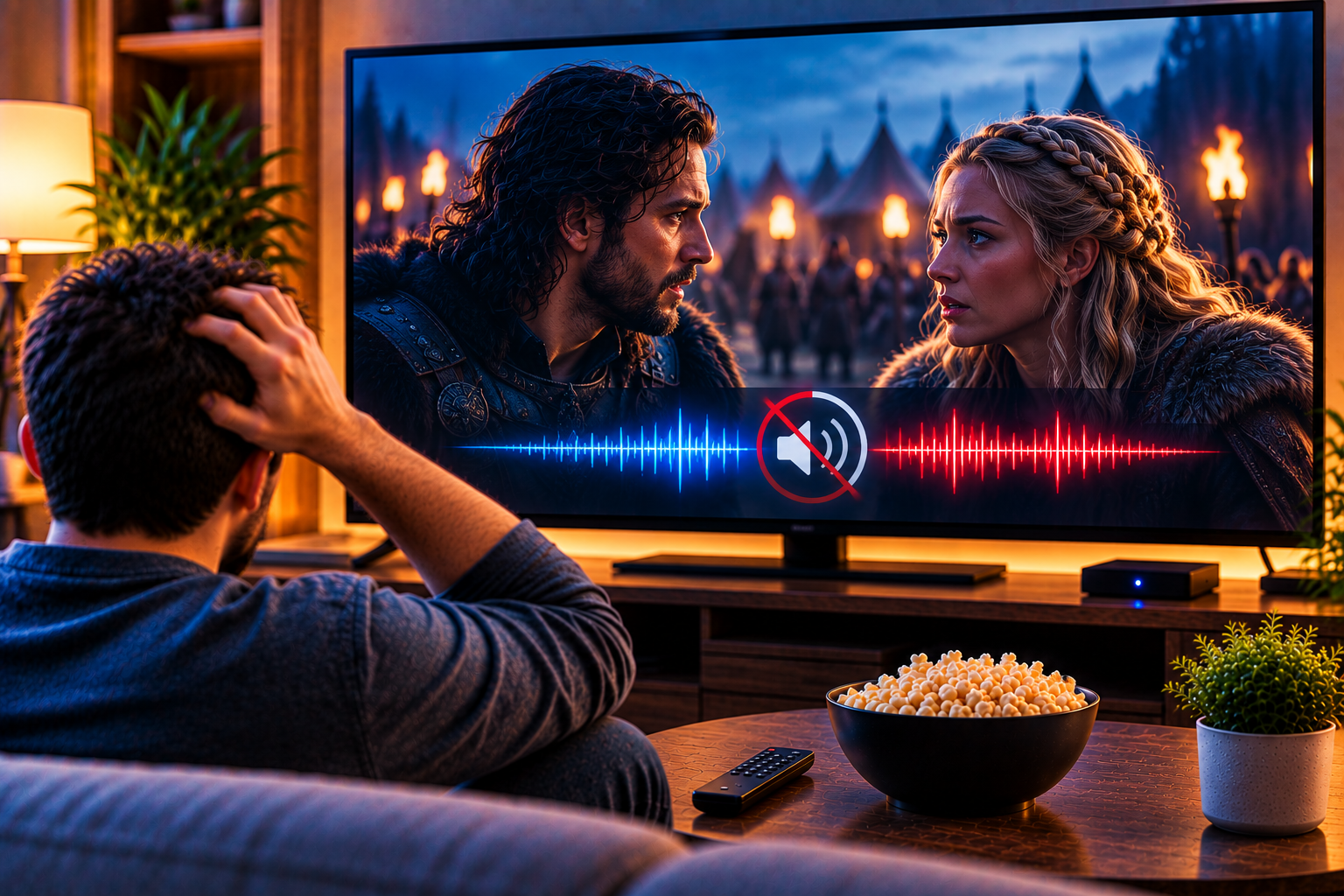
When IPTV audio out-of-sync problems appear, the picture and sound stop matching, and even a good channel becomes hard to watch. In Sweden, this can happen on Android TV, Fire TV, Apple TV, smart TVs, phones, tablets, or Windows PCs. The cause might be one channel, your player, Bluetooth audio, HDMI settings, buffering, or a provider feed.
IPTV audio out of sync: identify the pattern
Do not change every setting at once. First, find the pattern. Is the delay on one channel, many live channels, only VOD, or every app on the device? That answer points you toward the correct fix.
If YouTube, Netflix, and IPTV all have lip sync delay, the issue is probably your TV, soundbar, receiver, or device. If only one IPTV channel is affected, the source feed may be the problem.
What the competitors show
The Reddit TiviMate thread is a practical support case. A user reported several CBS and local channels with audio not matching the picture. Replies suggested asking the provider, restarting TiviMate, using the built-in Audio Sync control, changing the offset a little at a time, and avoiding global changes unless every channel has the same problem.
The Hashnode competitor URL could not be accessed because the page returned a forbidden response. Its title points to search intent: users want clear fixes for IPTV sound delay, lip sync drift, device settings, and provider-side issues. A guide should give a calm test order for Swedish home TV setups.
Step 1: Restart before adjusting
A simple restart fixes more sync problems than people expect. Close the IPTV app completely, reopen it, and replay the same channel. If the delay disappears, the player drifted during playback.
Restart the streaming device too. Fire TV, Android boxes, smart TVs, and Apple TV devices can build up memory pressure. After a long session, video decoding may lag behind audio or audio may drift behind video.
With a JA IPTV service you can test live TV, sports, movies, series, HD, FHD, 4K, and EPG on the exact device you use in Sweden.
Step 2: Test another channel
Switch between five channels: Swedish news, one sports channel, one movie channel, one international channel, and one VOD title. If only one channel is delayed, do not overfix your device. Report that specific channel to support.
If every channel has the same delay, look at app, device, TV, and audio equipment settings. A consistent delay is easier to adjust than random drift.
Step 3: Use the audio offset setting
Many IPTV players have an audio sync or audio delay option. In TiviMate, it can be adjusted from the playback menu. Move in small steps, such as 100 ms or 250 ms, then watch faces and speech.
Only apply the offset to all channels if all channels share the same delay. If one channel is late and another is fine, global adjustment will fix one and break another.
Step 4: check decoder settings
Video decoding can be hardware-based or software-based. Hardware decoding is usually faster, but some devices handle certain streams poorly. Software decoding can improve compatibility but may overload weaker boxes.
Open player settings and test hardware decoder on, then off. Try one channel, not your whole library. If lip sync improves, keep the better option and write it down.
With a JA IPTV subscription, you should test decoder settings during real viewing hours, especially before live sport or family movie nights.
Step 5: Inspect Bluetooth and soundbars
Bluetooth speakers and headphones often introduce delay. For testing, switch to the TV speakers. If sound becomes synced, the Bluetooth path caused the problem.
Soundbars and AV receivers can also add delay through audio processing, surround modes, HDMI ARC, or eARC. Turn off extra effects, try PCM audio, and check the soundbar’s lip sync setting.
Compare how Viking IPTV presents device support, but judge any setup by your own TV, soundbar, and evening network conditions.
Step 6: Adjust TV processing
Modern TVs process video heavily. Motion smoothing, noise reduction, dynamic contrast, and game mode settings can change video timing. If the picture is delayed while audio arrives quickly, lips and sound separate.
Try Game Mode or a low-latency picture preset. Turn off motion smoothing for testing. If the delay improves, keep a simple picture mode for IPTV.
Step 7: rule out buffering
Buffering usually freezes or stutters video, but unstable delivery can also create sync drift. Use Ethernet for the main TV when possible. If you use WiFi, test where the screen sits, not beside the router.
Start with HD before testing FHD or 4K. If HD stays synced and 4K drifts, the device, network, codec, or stream bitrate may be too demanding.
Step 8: Test another player
A stream can be fine while one app handles it badly. Try the same login in TiviMate, IPTV Smarters, VLC, XCIPTV, Kodi, or another trusted player. If another player stays synced, the first app is the likely issue.
Use official app versions when possible. Cracked or modified players can break decoding, audio tracks, updates, and playback controls.
Step 9: Choose audio tracks carefully
Some channels include multiple audio tracks. The wrong track may have different timing, language, or format. Open audio track settings and switch between available options.
If subtitles are also late, the issue may be the source file or stream timing. If subtitles match video but speech does not, focus on audio track, soundbar, and decoder settings.
Step 10: ask support with useful details
Do not simply say “sound is wrong.” Send device model, app name, channel name, whether live TV or VOD is affected, audio setup, network type, and what you already tested.
Need help with lip sync, app settings, M3U, Xtream, soundbar tests, or IPTV setup? You can contact JA IPTV on WhatsApp. Share device and app details, but never passwords or card information.
Quick fixes by symptom
One channel is delayed
Use per-channel audio offset or report that channel to support. Do not change global settings first.
Every channel is delayed
Check soundbar, Bluetooth, TV audio delay, HDMI ARC, decoder settings, and global player offset.
Delay appears after a while
Restart the app, lower quality, test Ethernet, and check device temperature or storage.
VOD is delayed, but live TV is fine
Try another player, switch audio track, and test the same title on a different device.
Common mistakes
The first mistake is applying one audio offset to all channels when only one source is wrong. The second is blaming the provider before testing TV speakers, another app, and lower resolution.
The third mistake is ignoring Bluetooth. Wireless audio delay is common. The fourth is changing router, app, soundbar, TV settings, and subscription together. Change one thing, test, and note the result.
Sound delay is annoying, but it is usually fixable when you work in order: restart, test channels, adjust per channel offset, check decoder, remove Bluetooth delay, simplify TV processing, and compare another player. If you want flexible IPTV packages, simple setup, and support for Swedish devices, you can get started with JA IPTV and build a smoother streaming setup at home.