
OTTPlayer is a simple IPTV player that lets you watch live TV from your own playlist on phones, tablets, computers, and smart TVs. If you want a tidy way to organise channels in Sweden, this guide walks you through every step, from creating an account to fixing common playback problems.
One point matters from the start. The app does not include any channels. It is a viewing tool, so you need a valid playlist from an IPTV provider you trust. Once you have that, the rest takes only a few minutes.
What Is an IPTV Player and Why Does It Matter?
An IPTV player reads a playlist and turns it into a channel list you can browse like a normal TV guide. The playlist is usually an M3U or M3U8 file, or a link that points to one. Inside are channel names, stream addresses, and often logos and categories.
A good player gives you more than a basic video app does:
- A clear channel list sorted into groups such as sports, news, movies, and kids
- Support for common protocols, including HLS, RTSP, UDP, and RTMP
- Easy playlist updates without reinstalling anything
- A clean interface with no ads
Still, the player is only half of the experience. Stream quality depends on your provider, and no app can fix unstable servers. That is why many Swedish viewers pair a good player with a dependable JA IPTV service that offers live TV, movies, series, and sports in HD, FHD, and 4K.
What You Need Before You Start
Gather these items first so the setup runs smoothly:
- A device such as an Android phone, iPhone, Mac, smart TV, or set-top box
- A stable internet connection, ideally 15 Mbps or more for FHD and 25 Mbps for 4K
- An email address for your account
- An M3U or M3U8 playlist link or file from your IPTV provider
Only use playlists you have the right to use. A licensed subscription keeps your viewing safe and far more stable than random free lists, which often stop working without warning.
OTTPlayer Setup: Creating Your Account and Adding a Playlist
The setup is managed through the player’s official website, which keeps your playlists in one place and syncs them to every device you link. Here is the process.
Step 1: Create Your Account
Open the official website and register with your email and a password. Confirm your email if asked. Keep these login details safe, because you will use the same ones inside the app.
Step 2: Upload Your Playlist
Sign in on the website and find the playlist section. Add your M3U or M3U8 file, or paste the playlist URL supplied by your provider. Give the playlist a clear name, such as “Sweden TV” or “Sports”, so it is easy to recognise later.
Step 3: Install the App and Sign In
Download the app on your device from its official store page. Open it and enter the same login and password you created online. Your account will appear straight away.
Step 4: Link the Device to the Playlist
Back on the website, attach your device to the playlist you uploaded. After a short refresh, your channels will load in the app. Pick any channel and test it. If it plays, setup is complete.
How to Manage Channels Like a Pro
Loading a playlist is only the beginning. A little organisation turns a long, messy list into something you actually enjoy using.
Keep Playlists Clean and Named Clearly
If you use more than one source, create separate playlists instead of merging everything. One for Swedish channels, one for sports, and one for movies makes browsing much faster. Remove old playlists you no longer use so the app stays light.
Sort Channels and Choose Favourites
Group channels by category and move the ones you watch daily to the top. Most players let you mark favourites, which saves scrolling when a match or news bulletin is about to start. Menu names vary slightly between app versions, so check the settings if an option looks different.
Fix Missing Logos
Channel icons make a list far easier to scan. When a logo is missing or wrong, update it through the icon management options on the website. Small touches like this make the lineup feel closer to a real TV package.
Update Playlists Regularly
Providers sometimes change stream addresses. If channels stop loading, refresh or re-upload the playlist before assuming something is broken. Many problems disappear after a simple update.
Using the Player Across Different Devices
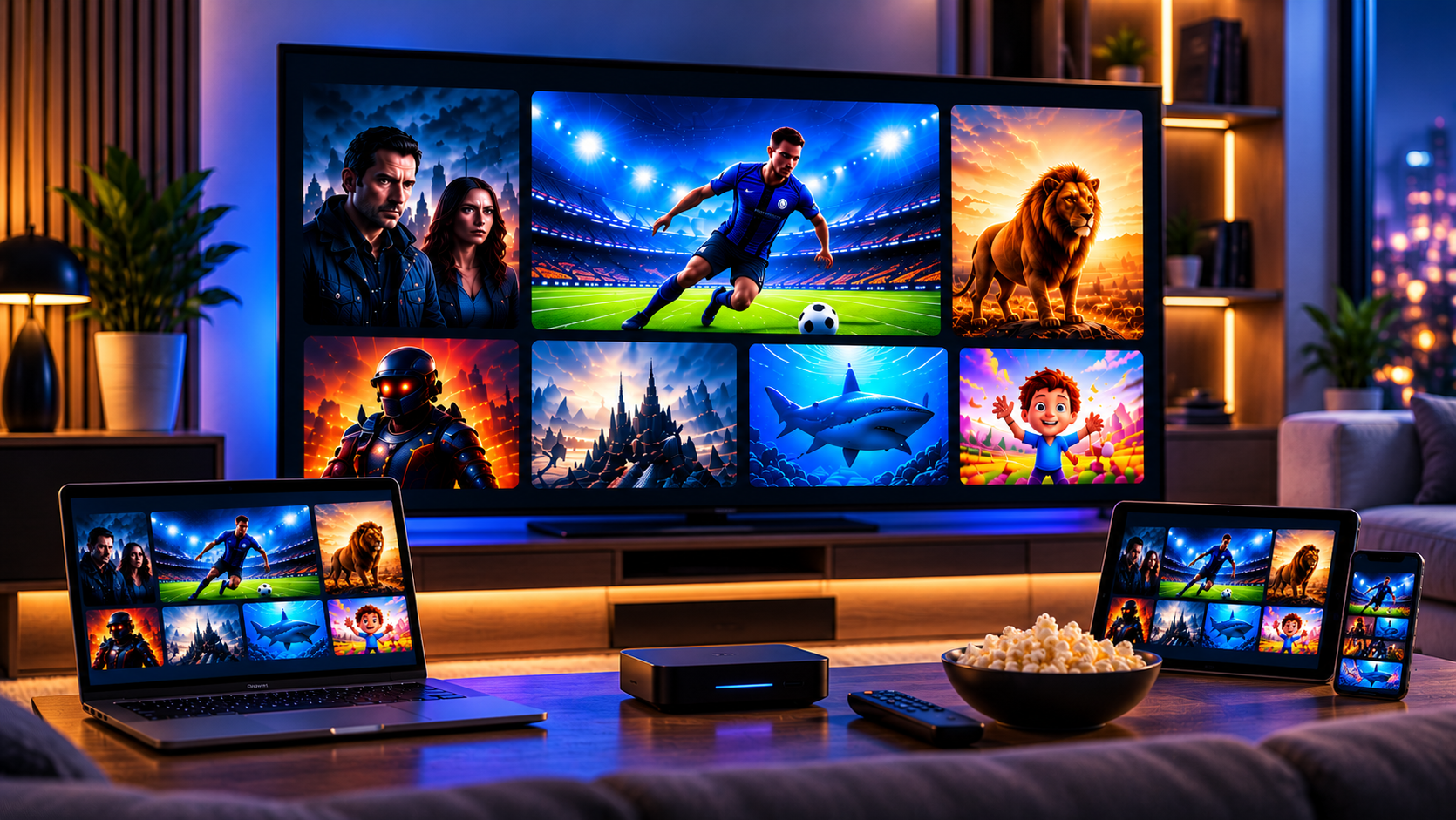
One account can serve several screens, which is handy for families. Android phones and tablets give you portability, while a Mac suits a desk or second screen. On a smart TV or set-top box, you get the full lounge experience with a remote control.
If you want to see how other providers present their packages, you can browse Nordic IPTV King to compare how plans are structured across the market. Whichever service you choose, check that it offers clear support and stable servers before committing.
Common Problems and Quick Fixes
Channels Will Not Load
Check that the playlist URL is correct and has no extra spaces. Then confirm that the device is linked to the right playlist on the website. Restart the app and try again.
Buffering or Freezing
Buffering usually points to bandwidth or server load. Move closer to your router, use a cable on a TV, and close other streaming apps. If the problem continues at peak hours, speak to your provider.
Login Fails
Re-enter your details slowly and check for typing errors. Reset your password on the website if needed, then try signing in again shortly.
Playlist Shows Empty
An expired subscription or a broken link is the usual cause. Ask your provider for a fresh link and upload it again once it arrives.
Tips for Smooth Streaming in Sweden
Sweden has excellent broadband, so most problems come from home networks rather than the connection itself. A wired connection is the most dependable option for a big screen. For Wi-Fi, use the 5 GHz band and keep the router in an open spot.
Pick a provider that fits your habits. If you follow sports, look for strong live coverage. If you stream films and series in the evening, make sure the service stays stable at busy times. Many viewers find that reliable IPTV with JA IPTV works well with a player like this because the packages are flexible and support is easy to reach.
Frequently Asked Questions
Is the app free to use?
The player itself is listed as free, but you still need a playlist from a provider, which is usually a paid subscription.
Does the player come with TV channels?
No. It only plays the channels in your playlist.
Which playlist formats work?
M3U and M3U8 playlists are supported, along with streams using HLS, RTSP, UDP, and RTMP.
Can I use it on several devices?
Yes. You can link multiple devices to your account and manage playlists from the website.
Ready for a smoother viewing setup? Choose a plan that matches your devices and favourite channels, and get started with JA IPTV today.